Welcome in the game - let’s talk about UI
Ok, you downloaded the game, ran the game via 4game client, picked the server, selected the class you love to play and now it is time to finally enjoy the most epic world in the MMRPG genre. You might be confused since quite a lot has changed since the original High Five server. And that is where this guide will help you understand each part of the new game’s mechanics!
Character’s level, HP, MP and CP
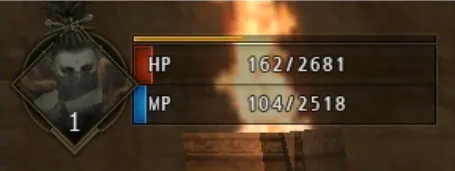
If you have ever played Lineage 2, you should be familiar with this concept already. The number on the character’s avatar shows your current level. The orange-ish line on the bar shows Combat Points (CP). These points are exclusively used in Player vs Player (PVP). So if you start fighting another player (not a NPC), first you will be exhausting CP points and then Health points (HP, red bar). The last blue indicator stands for Mana points (MP) that is used for any kind of skill. At the beginning of the game you will be fighting MP quite a lot, but in an upcoming part about general strategies I will tell you how to deal with it!
Mini Map
Mini map is a very useful UI component, that is telling you quite a lot of information. It tells you where you are, if there are monsters around, whether it is a day or night or if there are friends from the party nearby.
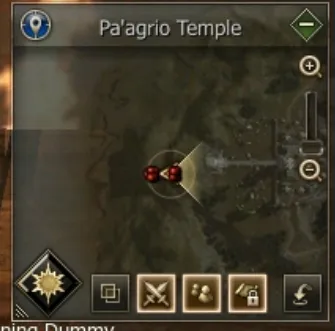
The map also offers customization buttons - the green-ish minus sign in
the top right corner can minimize the map entirely. The double square
icon
 let’s you toggle between
transparent and solid background. Icon next to it, two crossed swords
will show/disable monsters around you (on mini map only). Next Icon
stands for party member (show on/of), map icons stands for fixed radar
(toggle on/off) and the last one is probably the most important. The
icon with the arrow will open My
Teleport window,
where u can select your favorite location that you previously saved and
teleport there immediately.
let’s you toggle between
transparent and solid background. Icon next to it, two crossed swords
will show/disable monsters around you (on mini map only). Next Icon
stands for party member (show on/of), map icons stands for fixed radar
(toggle on/off) and the last one is probably the most important. The
icon with the arrow will open My
Teleport window,
where u can select your favorite location that you previously saved and
teleport there immediately.
Quest Dialogs
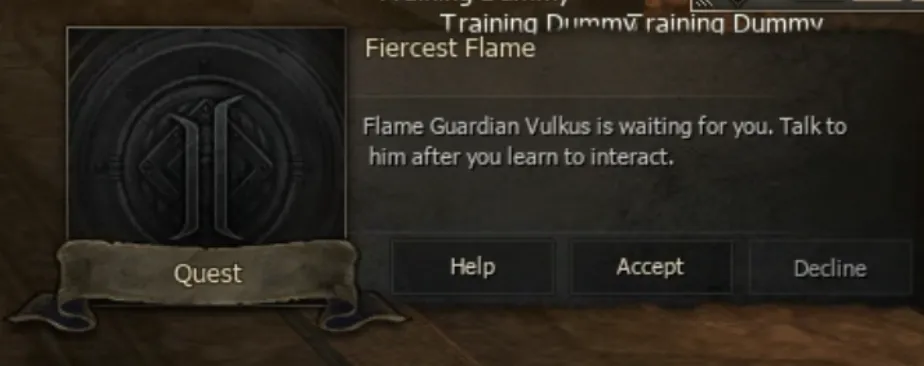
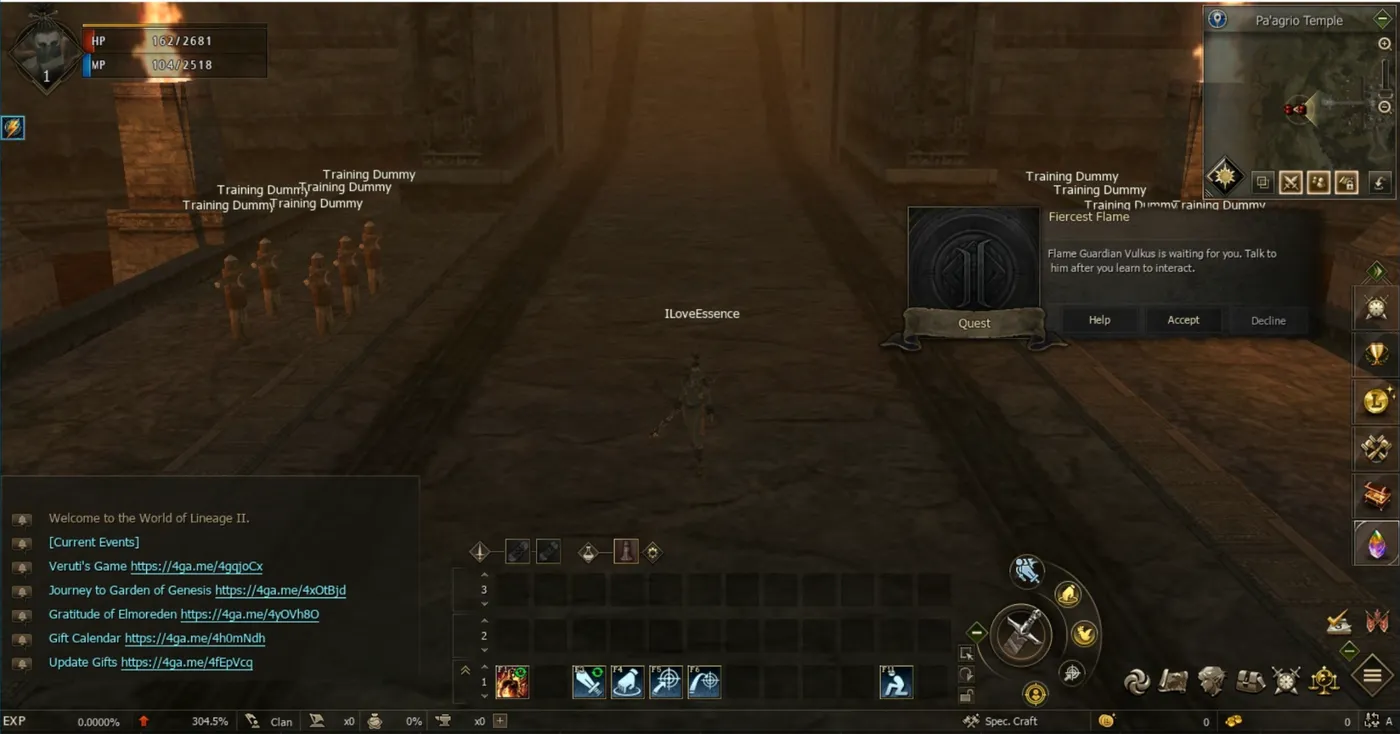
The next component that you will encounter after you start the game is quest dialog. Newbie quests will walk you through a series of questlines which are pretty straightforward and will help you to hit lvl 76 in less than an hour. In case you would close this window by mistake, you can always invoke it back from the selection window under ALT + U. You can read more about the Quest tab in Part 9 of this series.
Autofarm
If you played Lineage 2 back in the days, you surely remember sitting hours a day manually hunting mobs. Lineage 2 Essence is very friendly in this way and you can use 24/7 completely free autofarm that is hunting for you, using shots and potions for you, picking up things from the ground and allows you switching between certain modes.
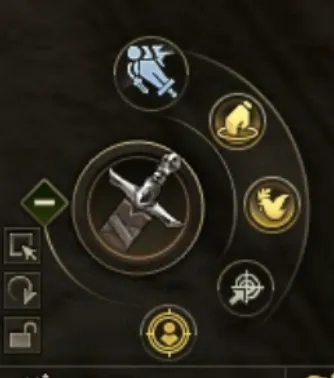
If you have a look at the autofarm component, you will see 7 buttons you can control. Let’s start with the first icon on the very top - the sword.
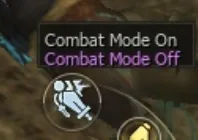
This allows player to toggle between PVE and PVP mode. For new players I
highly recommend having combat mode OFF all the time since if some
player with karma (a
player who killed another player and his nickname turned red) will go
around,
autofarm will
target such player and attack him. Next to it is a pickup mode
 . This mode I recommend
having always on otherwise you will not be picking items! There are
specific situations where you want to have this turned off - when
hunting raid bosses or channeling event items to a certain player who
needs help! Next icon stands for hunting mode.
. This mode I recommend
having always on otherwise you will not be picking items! There are
specific situations where you want to have this turned off - when
hunting raid bosses or channeling event items to a certain player who
needs help! Next icon stands for hunting mode.
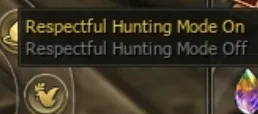
This mode is very important and I highly (again!) recommend having this always on especially if you are a new player. Autofarm then will not target those monsters that are already attacked by other players!
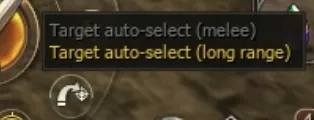
Next icon stands for range. There are situation where you want to switch between these. I believe for a new player you will have always “long range” activated, but also you can find a little spot with high density and that will be the case where you want to activate melee range so your character will not target other mobs in distance and walk you away from that little crowded spot.
Next icon is also very useful but my personal advice is - do not touch it as newbie and always make sure you have “Monsters” selected.
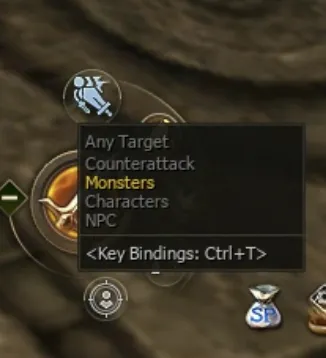
As you can see from the image above, you can switch between targets that will autofarm focus on - any target (literally anything, NPC, players, pets), counterattack (if somebody attacks you, you can attack back with autofarm. Unfortunately, as for now this option does not work as expected). Monsters - you will be targeting only monsters. Characters - only players and NPC - only game NPC.
If your character will not be hunting any monster around, most probably you have missclicked this option!
Spellbar
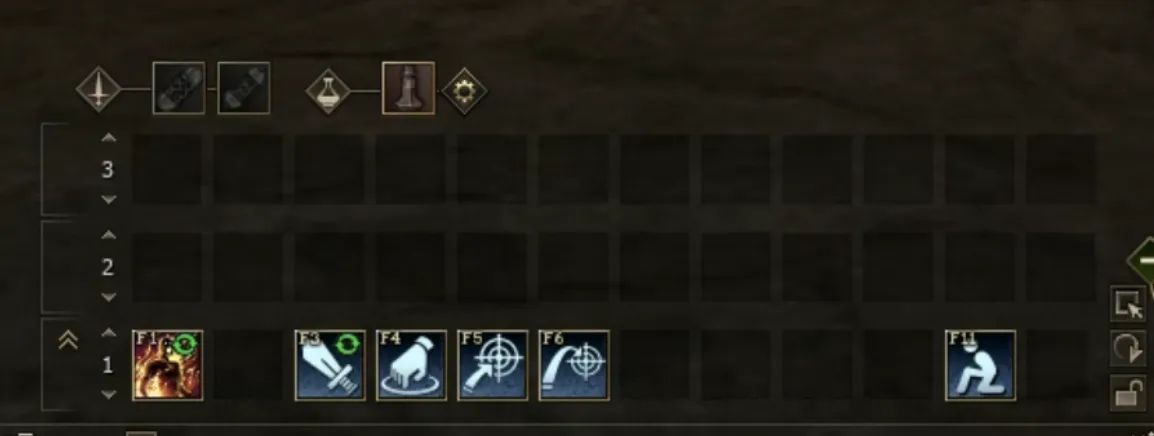
Next let’s discuss your spell bar! The is where you can activate your
soul shots,
potions, skills or you can invoke certain game’s mechanics like to sit,
to open my
teleport or invite
somebody to party. The game will walk you through all of this, but very
important info - if you right click on anything that has the little
green circle on it
 , it means you can “cycle”
the skill/action.
, it means you can “cycle”
the skill/action.